Review a follow-up in FlockConnect
In this account-owner demo, a fictional follow-up moved from Open to Completed and back to Open. The same task title and November 5 due date returned after Reopen. This checked the interface state; no real call or visit occurred.
By Caleb Brooks · Observed . First-hand account-owner demo observation with fictional records. Account identity was hidden before screenshot capture; record values and product results were unchanged.
A follow-up list is useful when the team can tell which actions remain open and what a completed item means. It should also let the coordinator find a task again when more work is needed. This walkthrough follows one fictional task through those visible states in FlockConnect.
The account-owner session used Harbor Community Church (Demo) on November 2, 2026. The task concerned James Adams, a seeded fictional person. This was a state-toggle exercise only: no actual call, visit, or pastoral conversation took place. The sample was reopened at the end rather than left looking like completed care.
What this session established
- Before the change
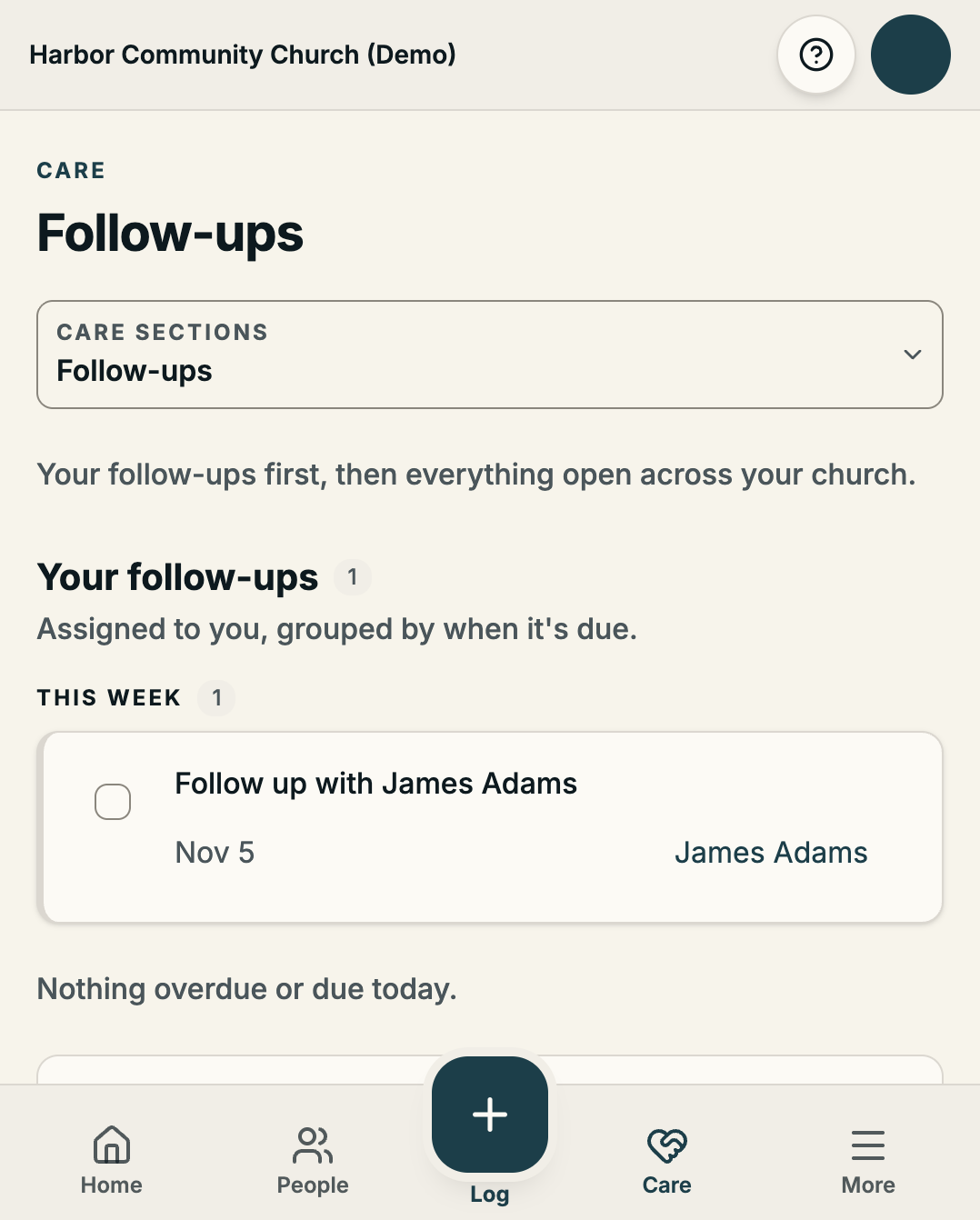
- Your follow-ups showed one Open task, Follow up with James Adams, due November 5; Completed showed zero.
- After completion
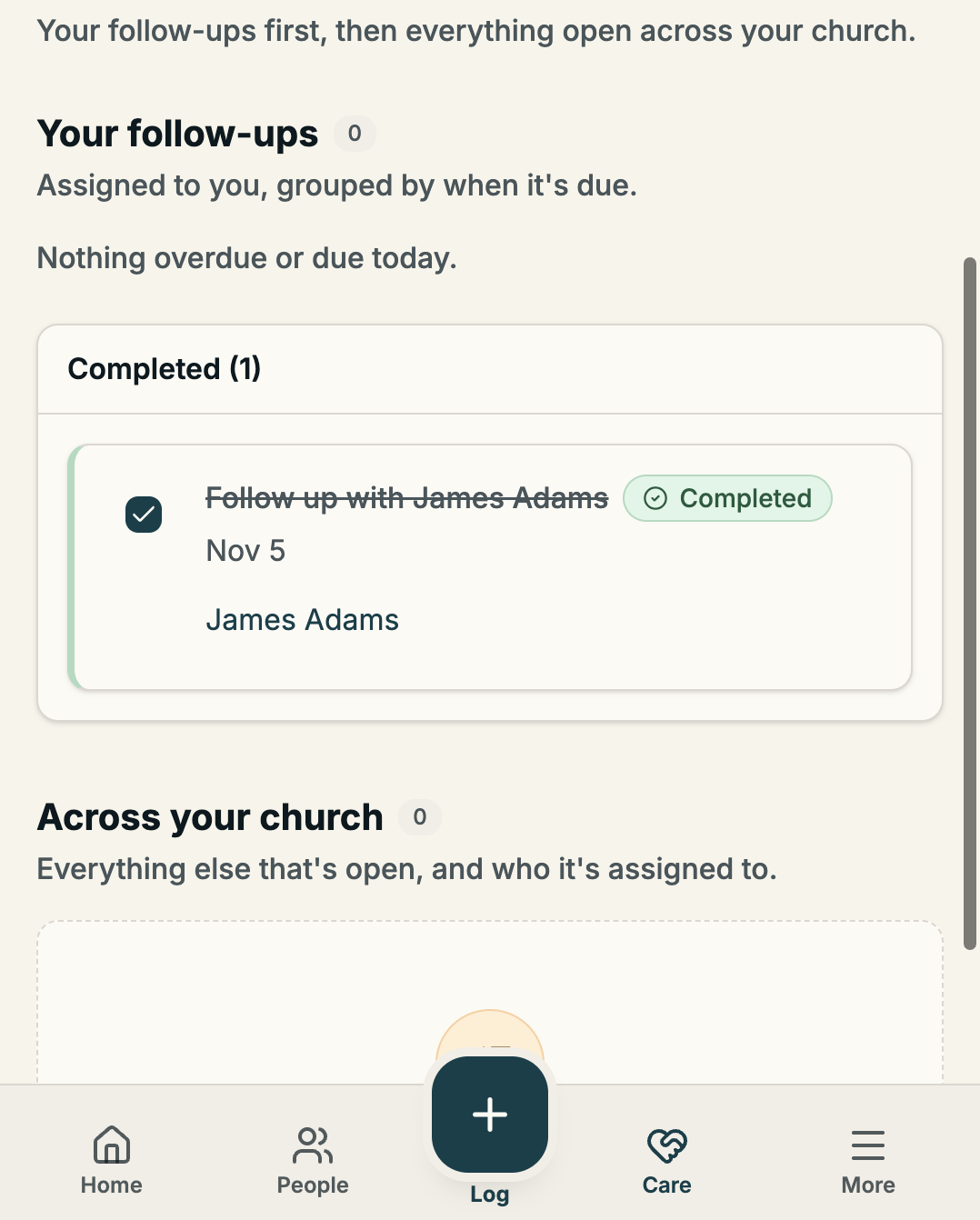
- Your follow-ups showed zero. Completed showed one, with the same task title, a Completed badge, and a Reopen control.
- After reopening
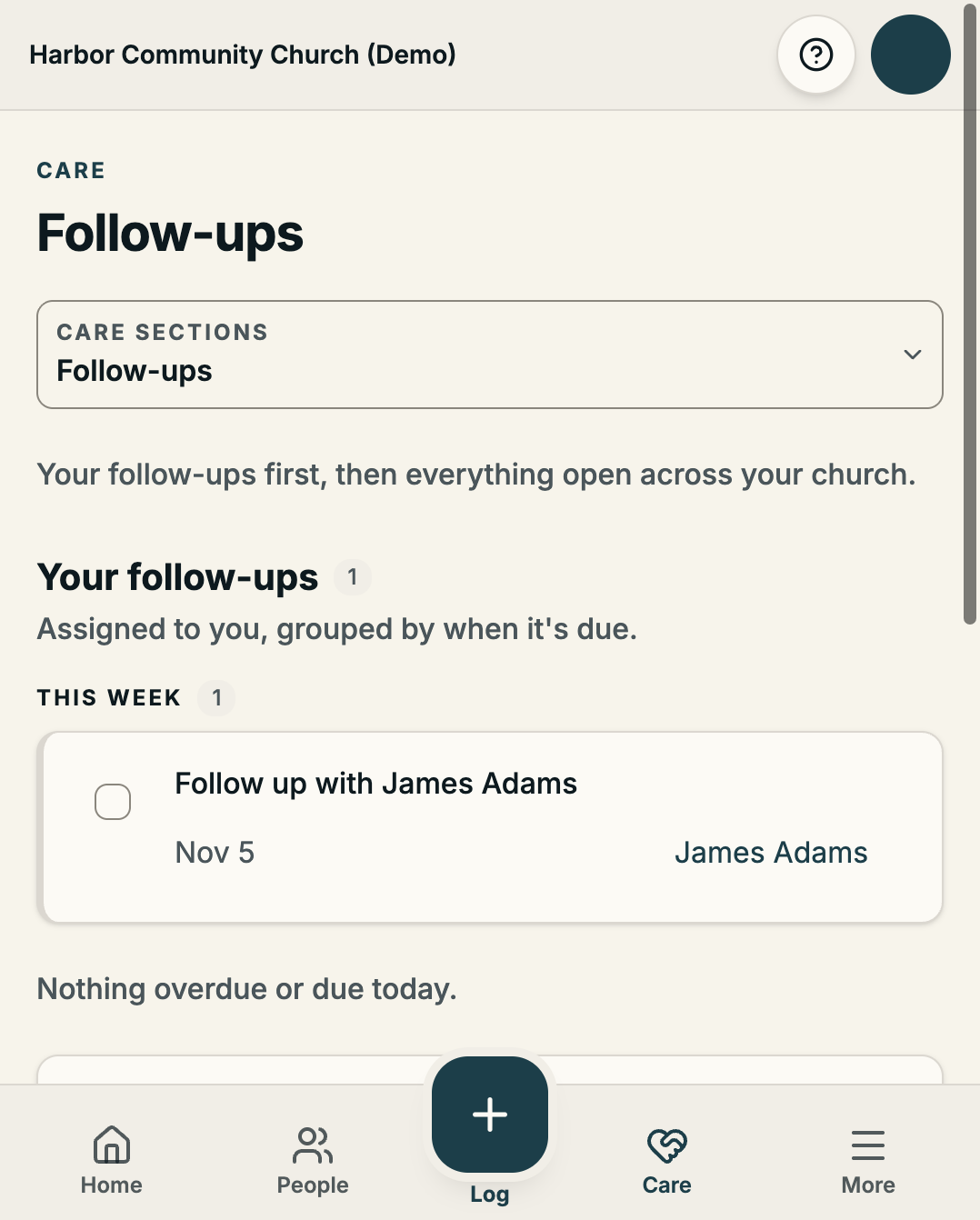
- Your follow-ups returned to one. The same title and November 5 date were Open again, and Completed returned to zero.
Screenshot walkthrough
This captioned clip is assembled from the observed demo states. It is a sequence of actual screenshots, with a full transcript below.
Download MP4 · Download captions
Read the complete video transcript
0s. The fictional James Adams task is Open and due November 5. This is a demo state-toggle exercise; no real call or visit occurred.
12s. Mark the sample complete and expand Completed. The same task appears with a Completed badge and a Reopen control.
24s. Reopen the sample. The same title and November 5 date return to Open. The demo was left in this state.
1. Find the open action before changing it
The tester opened Care, then Follow-ups. Your follow-ups showed one item, and This week also showed one. The task title was Follow up with James Adams, its status was Open, and its due date was November 5. It was assigned to the signed-in owner. The Completed section contained zero items.
For a church trial, identify the exact title, person, owner, and date before using a completion control. A coordinator reviewing a long list should be able to say which action is being changed. Use a fictional task whose purpose is clear, and keep the practice distinct from the church's live requests.
2. Observe what completion changes
The tester marked the fictional Follow up with James Adams task complete. Your follow-ups then showed zero, and Completed showed one. Expanding Completed revealed the same task title with a Completed badge and a Reopen control. That supplied a visible check that the sample had changed state instead of simply disappearing from the current list.
This result establishes the interface behavior observed in the demo. A completion badge cannot establish whether a conversation happened or whether a person's need was met. In ordinary work, agree what the task requires and keep a factual record of the action before marking it complete. A promised call and an attempted call are different events.
3. Reopen the same sample and verify it
The tester selected Reopen on the completed sample. Your follow-ups returned to one. The same title and November 5 date appeared with status Open, and Completed returned to zero. The practice therefore ended with the sample visibly open again. No new due date or replacement task was needed for this observed round trip.
A useful trial check is to find the item in both views and read its identifying details again. Do not assume that a changed count proves the right task moved. This session checked the title, date, and status after reopening; it did not test every filter, another worker's queue, reminders, or external notifications.
4. Give status words a shared meaning
Before using the list for real requests, agree what proposed, accepted, scheduled, attempted, and completed mean in the church's working routine. Those are useful human distinctions even when a particular interface offers fewer status choices. Do not claim that every process word is a separate FlockConnect control: this exercise observed Open, Completed, and Reopen.
When an action remains unfinished, ask what actually happened and who owns the next decision. The coordinator may need to arrange cover, confirm that contact is still wanted, or agree another date. Keep the necessary context in its approved record and bring only what the people in the review need to discuss.
5. Use the review to keep the next step visible
Bring a few fictional open actions to the first team practice. Ask one worker to find the person and date, another to explain the completion rule, and the coordinator to find the sample again after its state changes. End with a named owner for anything unresolved. The point is a true account of the work, not a tidy count for its own sake.
FlockConnect is a useful option to evaluate when a team needs a dedicated place to return to care follow-ups. In this owner demo, the sample moved into Completed and could be reopened with its identifying details still visible. Pair that observation with the team's actual review habit and the role checks that were outside this test.
Actual demo screenshots
Testing limits
- This was a fictional state-toggle exercise in the account-owner demo. No actual call, visit, member response, or care outcome occurred.
- No reminder delivery, external notification, other worker's account, permissions enforcement, or every queue filter was tested.
- The sample was left Open after the exercise. These screenshots demonstrate the tested interface states, not a report of completed church care.
Use the observation in your own trial
- Care meeting agenda: Set a regular review with accepted owners and decisions about unfinished work.
- A care meeting that ends with owners: Distinguish a status count from an account of what actually happened.
- Care operating agreement: Give the team shared status words, a coordinator, and a backup route.
Related vendor documentation
The steps above describe the observed session. These documents provide the vendor’s wider instructions; their publication does not establish an additional test.