Log a care note in FlockConnect
In this account-owner demo, a fictional note saved with Only me selected and a follow-up scheduled. Reopening the person’s Activity tab showed the exact note and follow-up entry. Check the audience before saving.
By Caleb Brooks · Observed . First-hand account-owner demo observation with fictional records. Account identity was hidden before screenshot capture; record values and product results were unchanged.
A useful care log needs more than a successful save message. The worker should be able to return to the right person, find what was written, and distinguish a recorded next step from contact that actually happened. This walkthrough follows that small loop in FlockConnect.
The observed session used the account-owner role in Harbor Community Church (Demo). James Adams was a seeded fictional person. The practice text explicitly identified itself as fictional, and no real pastoral conversation or member information was entered. Account-identifying text was hidden in the browser before the screenshots were captured; the record values and product results were not changed.
What this session established
- Audience before saving
- Only me (private), with the summary Visible to: Only you, in the account-owner role.
- Save response
- The form closed and displayed Interaction logged.
- Reopened result
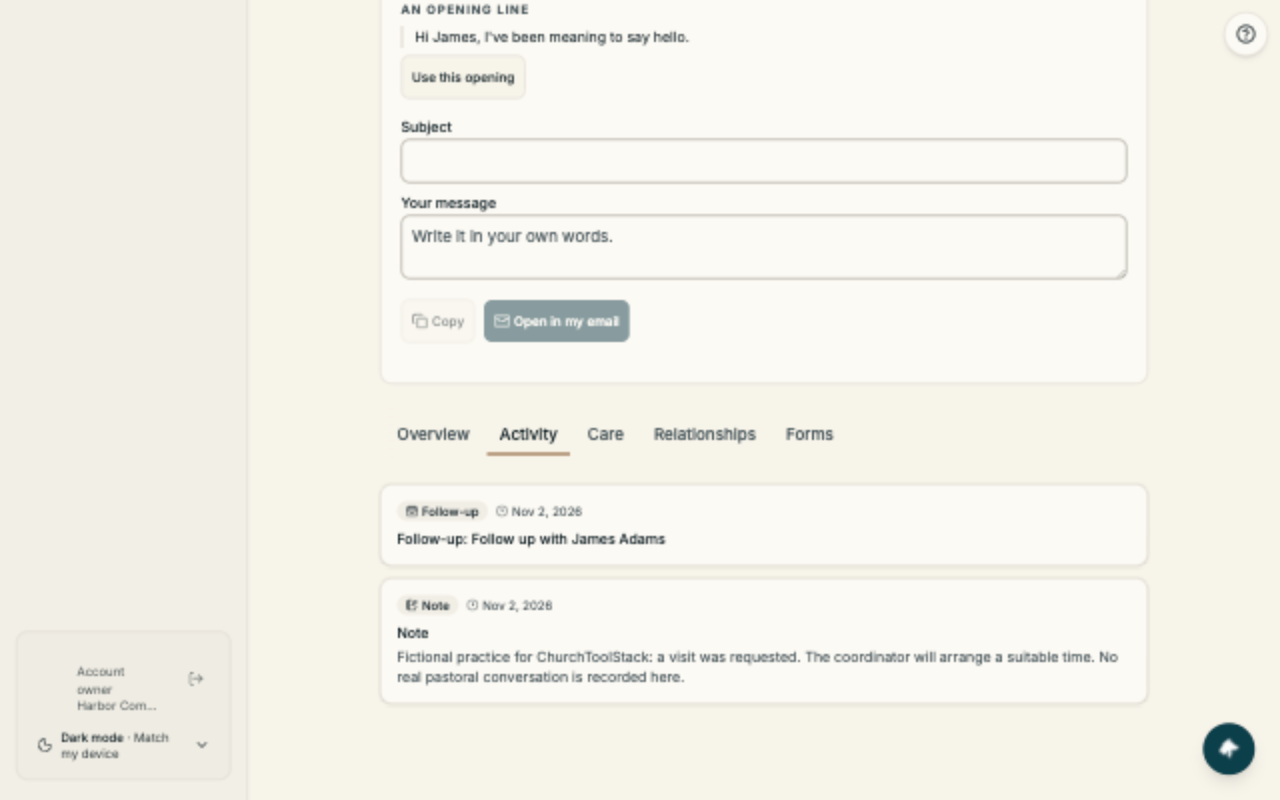
- The person’s Activity tab displayed the exact fictional note and a separate follow-up entry.
Screenshot walkthrough
This captioned clip is assembled from the observed demo states. It is a sequence of actual screenshots, with a full transcript below.
Download MP4 · Download captions
Read the complete video transcript
0s. In the fictional demo, enter a practice note for James Adams. No real pastoral conversation is recorded.
12s. Before saving, check the scheduled follow-up and the selected Only me audience. This is the account-owner view.
24s. After saving, reopen Activity. The exact practice note and a separate follow-up entry are visible.
1. Start with the right person
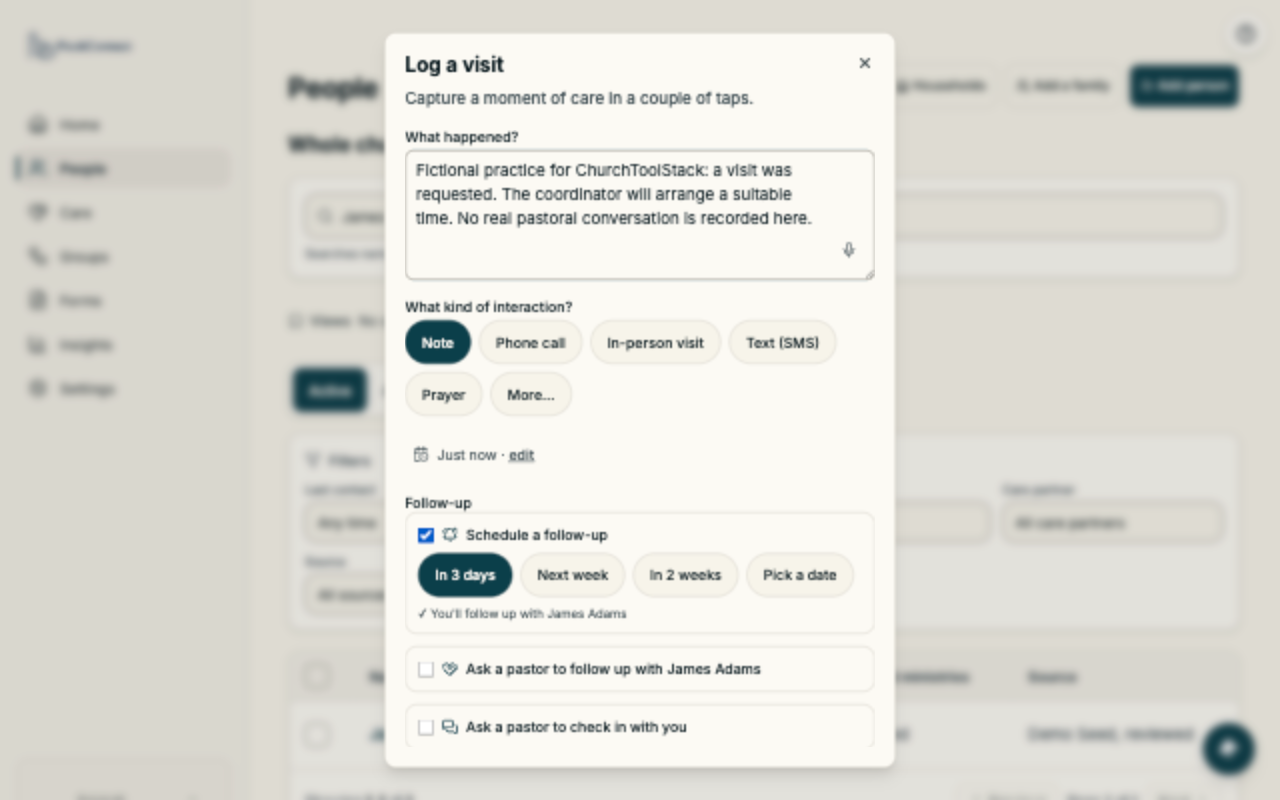
In People, the tester searched for James Adams. The result offered a Log action beside that person. Opening it brought up the Log a visit form already associated with the selected person. That starting point matters: a correct note under the wrong person would still be the wrong record.
For a church’s own trial, use an agreed fictional person and confirm the workspace first. Do not copy a confidential conversation into a demonstration to make it feel realistic. A harmless request is enough to test the recording routine.
2. Write an account of the practice action
The form asked What happened? The tester entered: “Fictional practice for ChurchToolStack: a visit was requested. The coordinator will arrange a suitable time. No real pastoral conversation is recorded here.” The selected interaction kind remained Note. A request for a visit was not presented as a completed visit or phone call.
The form also displayed interaction choices including Phone call, In-person visit, Text (SMS), and Prayer, plus a More option. Those visible choices were observed; this session did not test every interaction type or dictation. Use the kind that describes the actual event rather than choosing the label that makes a dashboard look busiest.
3. Set the next step and read the audience
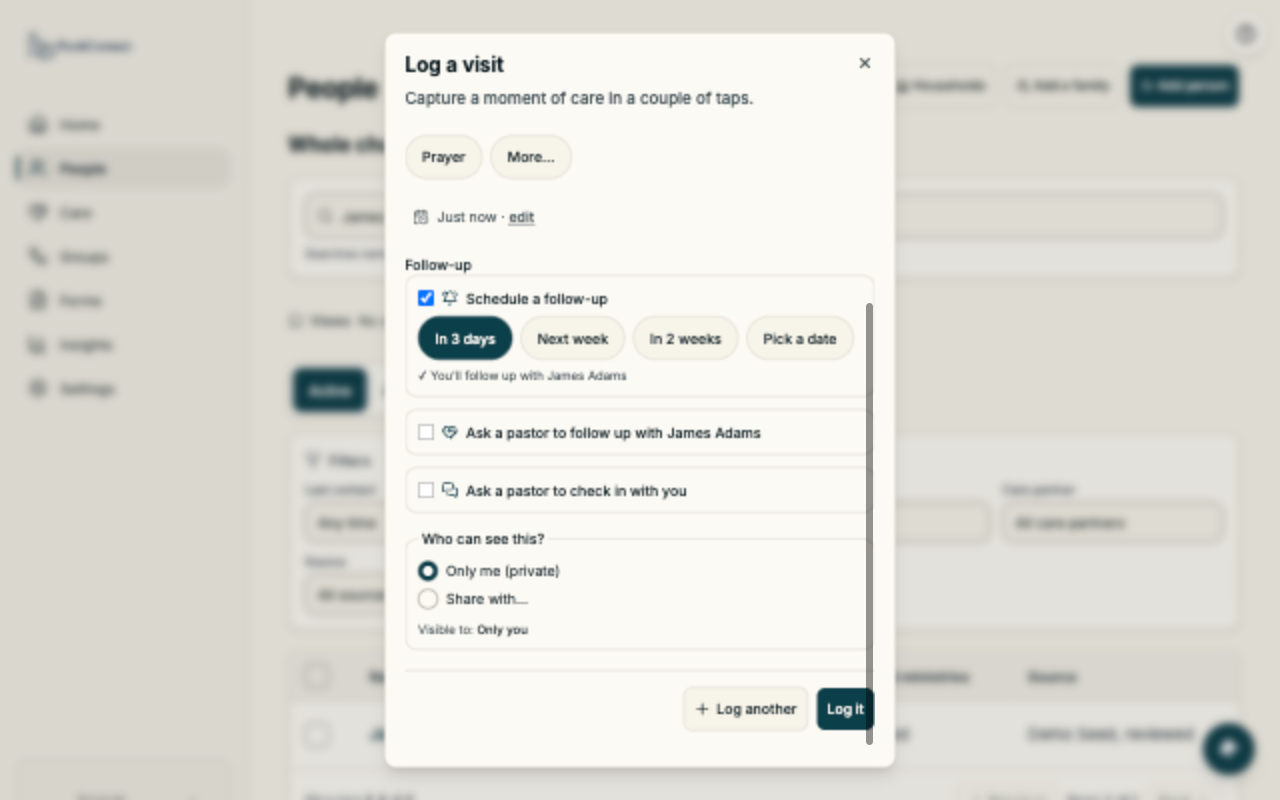
The tester selected Schedule a follow-up. The form showed In 3 days as the selected option, alongside Next week, In 2 weeks, and Pick a date. A confirmation line said the signed-in user would follow up with James Adams. This was a fictional task for the demo owner, not an instruction sent to a real member.
Under Who can see this?, Only me (private) was selected. The summary read Visible to: Only you. The tester left that audience in place before saving. This records the starting choice observed for the account-owner role. It does not establish the default or record access of a different role.
4. Save, then verify the saved record
After Log it was selected, the form closed and the interface displayed Interaction logged. The tester then opened James Adams’s profile and selected Activity. That tab contained the exact fictional note, dated November 2, 2026, and a separate Follow-up: Follow up with James Adams entry. Returning to the record supplied evidence beyond the temporary success notice.
The entry proves that the tested demo flow displayed the saved practice note and follow-up. It does not prove that a real visit took place, that an email was delivered, or that another account could or could not read the record. Keep those questions separate when writing the church’s own trial notes.
5. Bring one useful check into ordinary care work
Ask the worker to repeat the loop with a fresh fictional example: choose the person, write a brief factual account, name the next action, check the audience, save, and reopen. Have the coordinator explain who will notice an unfinished task. Software can store the next step; acceptance and the weekly review still belong to people.
FlockConnect is a useful choice to evaluate when a team wants care notes and follow-up in a dedicated place. This observed loop gives a concrete starting point for that evaluation. Compare it with the team’s actual responsibilities, the current plan, and the roles people will use before entering private history.
Actual demo screenshots
Testing limits
- Observed in a fictional demo workspace as its account owner. No care-partner sign-in or independent permissions test was performed.
- No real member contact, email delivery, Planning Center write-back, dictation, support response, or ministry outcome was tested.
- The demo contains sample Collie material. That display does not establish that announced Collie features are available in Starter.
Use the observation in your own trial
- Pastoral visit note worksheet: Agree what belongs in the record before the first note.
- Fourteen-day trial plan: Keep observations, unanswered questions, and the team’s decision together.
- FlockConnect product review: Read the wider documentation-based assessment and current plan boundaries.
Related vendor documentation
The steps above describe the observed session. These documents provide the vendor’s wider instructions; their publication does not establish an additional test.